


Set up an external backup of your hosting
Updated on
LRob backs up your hosting on two levels, outside the server (see Keeping my data safe for the long term). These backups are for operations: they do not replace a copy that belongs to you and remains your responsibility. Your hosting gives you two ways to make one from Plesk: a manual, one-off copy, and an automatic scheduled backup to a remote server.
Manual backup
To keep a copy of a site at a given moment, for example before a major change or before deleting a subscription, everything is done from the subscription page:
- Files tab: tick the site’s folder (usually
httpdocs), click Archive to create a zip, download it, then delete the zip from the server so it does not take up space. - Databases tab: on the site’s database, Export Dump, with download. The file contains the whole database.
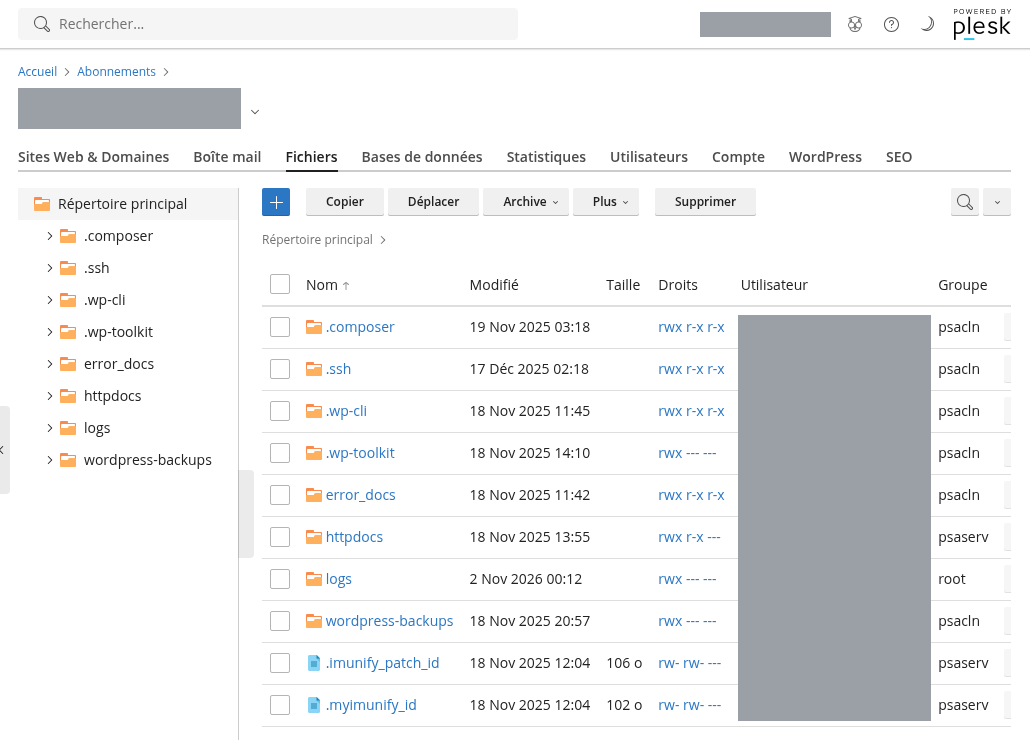
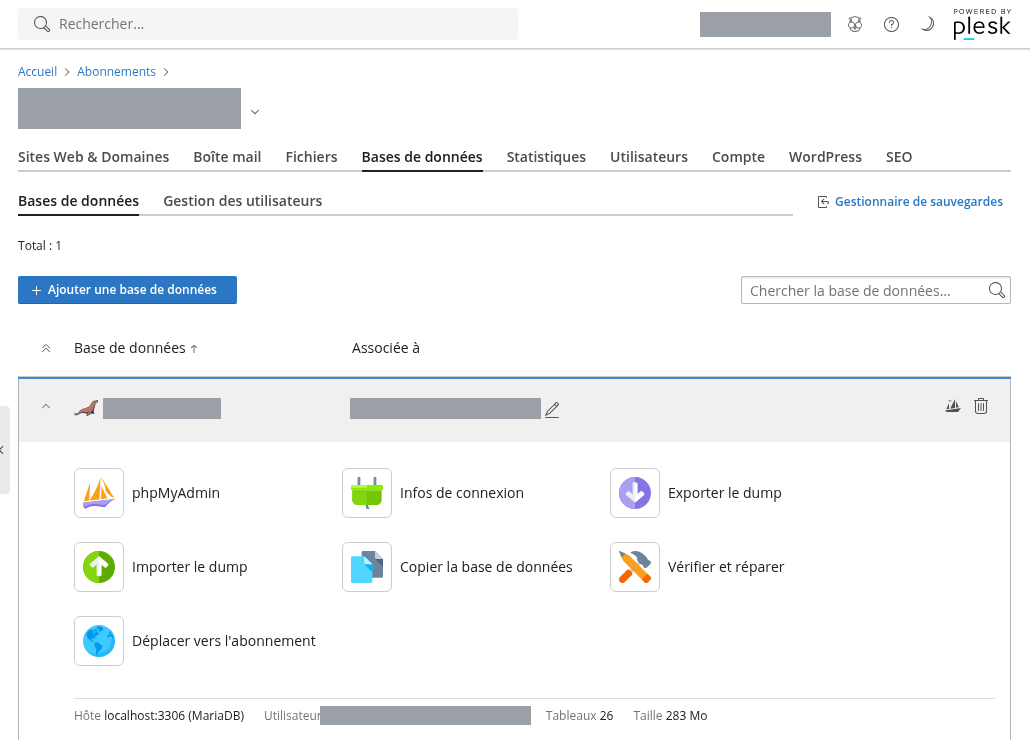
This copy contains the site, not the e-mail. Mailboxes are only kept by a Plesk backup of the subscription, described below, or by retrieving them over IMAP from mail software.
Automatic scheduled backup
The Plesk Backup Manager (Backup & Restore, on the subscription page) backs up the whole subscription: files, databases, mailboxes and their content, configuration (domains, DNS, PHP settings). On LRob hosting, these backups are stored off-site: they are sent to a remote server that belongs to you, outside the hosting server. You therefore need to start by choosing this storage space.
1. Choose a storage space
Our recommendation: a Hetzner Storage Box, to be ordered in Finland, so that it is geographically distant from LRob’s servers. The first model (1 TB) costs a few euros per month, FTP and FTPS access is enabled by default, and automatic snapshots also protect against accidental deletion.
- The host to use is of the form
uXXXXX.your-storagebox.de(your Storage Box number). - Create one sub-account per hosting account, each limited to its own folder: one hosting account never sees another’s backups.
- A NAS at home or any other FTP(S) server reachable from the Internet also works: see the tutorial Back up a Plesk hosting account to your home NAS.
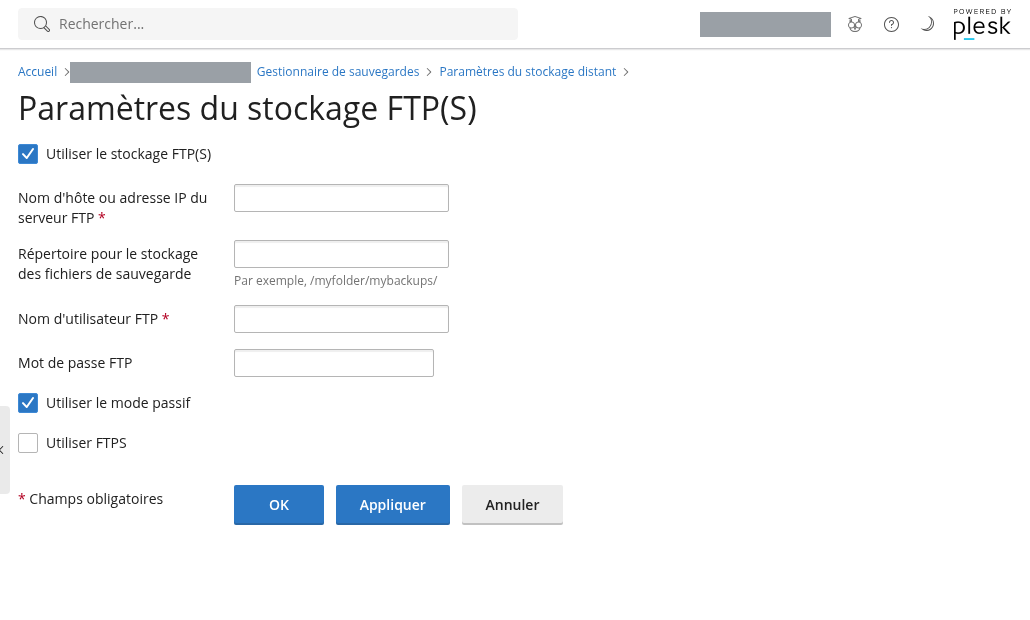
2. Declare the remote storage in Plesk
In the Backup Manager, Remote Storage Settings, then FTP(S). Tick Use FTP(S) storage and enter the host name, the storage directory (for example /monsite/), and the user name and password of the sub-account. Leave passive mode ticked and tick Use FTPS so that the transfer is encrypted. Confirm with OK: Plesk tests the connection.
3. Schedule
Still in the Backup Manager, click Schedule: turn on the task, choose the frequency (one backup per day, at night, suits most sites), the number of backups to keep, and whether to send an e-mail in case of error. Backups then go automatically to your remote storage. The Back Up button starts one immediately when you need it. Restoring is done from the same page, in full or item by item.
Resellers
The principle is the same, only the place changes: a reseller account has the Backup Manager at the global level, in Tools & Utilities. A single remote storage and a single schedule there cover all your subscriptions. This is the method adopted by several agencies hosted with LRob.