


Reseller Documentation (Web Agency)
Updated on
Welcome to this space dedicated to managing your LRob reseller account in Plesk (Web Agency plans). This page explains the vocabulary, the hierarchy of items, and best practices for managing your customers and their hosting.
Understanding the Plesk hierarchy and vocabulary
From a reseller’s point of view, items in Plesk are organized as follows:
LRob → Reseller → Customer (optional) → Subscription (linked to a service plan & a customer) → Domain / Alias
- Customer: an account created in your reseller area for one of your clients.
- Service plan: defines the resources, settings and permissions associated with each subscription.
- Subscription: a hosting space (resources, disk quota, features). It is the central unit of Plesk.
- Domain: the main website attached to a subscription.
- Alias: an additional domain pointing to the same subscription (see the dedicated section).
Customers
What is a “customer” in Plesk?
A customer is an account created in your reseller area that lets one of your clients log in to Plesk and access their own hosting, without seeing yours.
Is creating a customer mandatory?
No. You can manage subscriptions without creating associated customers — you then remain the only one with access to them.
Creating a customer becomes useful if:
- you want to give your client Plesk access so they can reach their data and manage their own hosting (FTP access, e-mail addresses, WordPress Toolkit, DNS zone, external backups…);
- you want to stay better organized by seeing directly who owns each subscription.
Note: Some permissions granted to the customer (such as access to PHP settings) are determined by the service plan associated with them. See the dedicated section.
How do you create a customer?
- In your Plesk reseller area, go to Customers.
- Click Add Customer.
- Fill in the account details (name, e-mail, user name, password).
Subscriptions
What is a subscription?
A subscription is a hosting space: it contains the resources (disk space, databases, e-mail, etc.) defined by its service plan and hosts one domain and its aliases, if any.
⚠️ One domain = one subscription. Even though Plesk allows it, never host several domains in the same subscription. Since each subscription runs under a dedicated system user, this separation is what guarantees that a customer can only access their own files. It makes it easy to reassign a domain to a given customer, and it also isolates each of your sites under its own system user, for more security.
Create a subscription
You can create a new subscription via Subscriptions > Add Subscription.
Note: The number of subscriptions/domains available depends on your reseller plan. If you have reached your limit, Plesk will block you. To change plans, open a ticket from your LRob customer area.
Suspend or disable a subscription
When a site no longer needs to be online (end of service, non-payment, site replaced), do not delete it: change its status. Nothing is erased, and you can go back immediately.
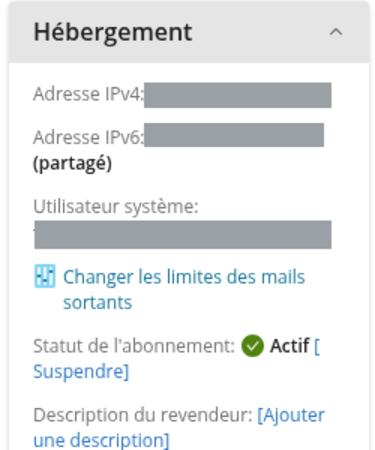
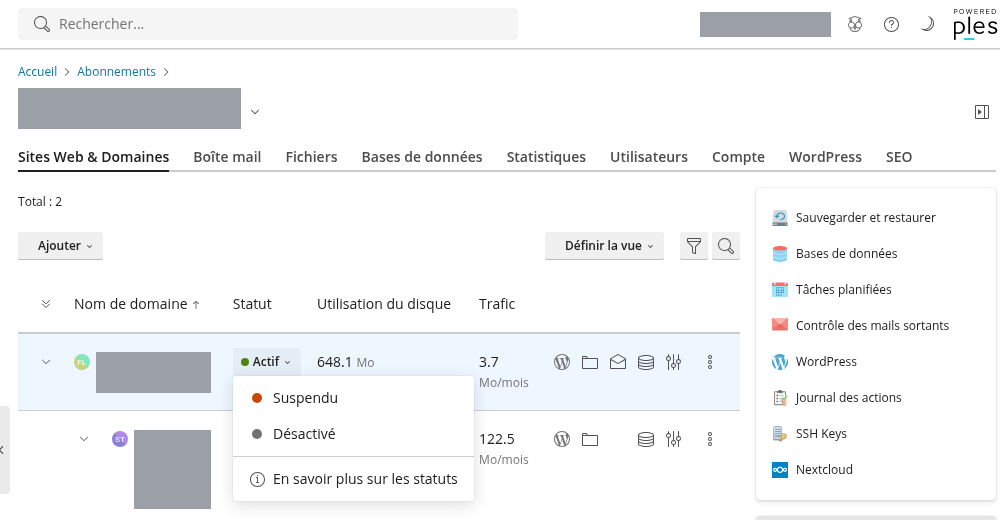
The most direct way, from the subscription page (Websites & Domains tab): click Suspend in the Hosting panel on the right, or the Active status next to the domain name, which opens a menu with Suspended and Disabled. There is nothing to tick on this page.
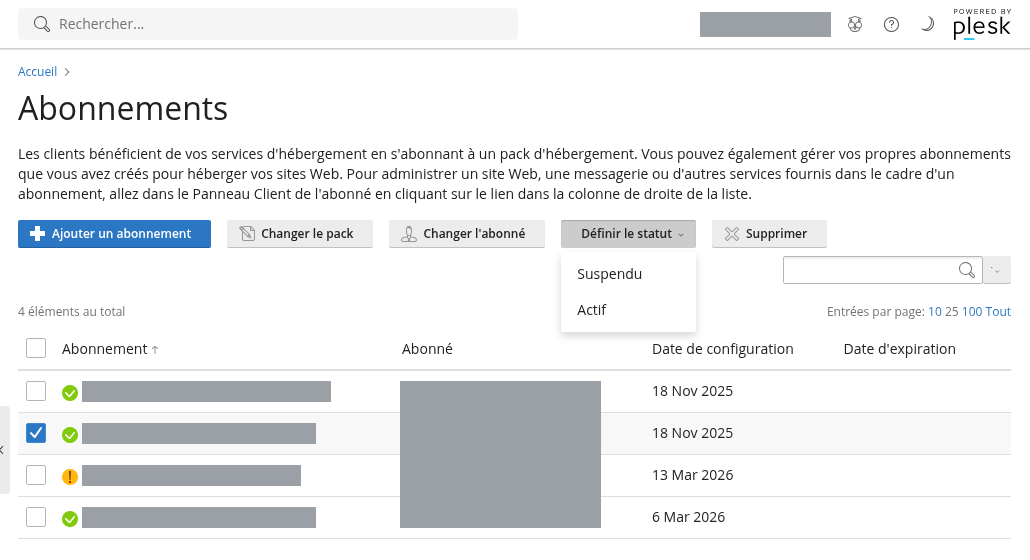
From the subscription list (Subscriptions menu), for several subscriptions at once: tick the subscription, click Set Status and choose Suspended. The same menu then offers Active to put it back into service.
The difference between the two statuses:
- Suspended: the site shows a “Service unavailable” page (503 error), search engine robots can still get through, and the domain’s e-mail keeps working. This is the status for a temporary interruption.
- Disabled: the site and e-mail are cut off, and robots can no longer reach them. This is the status for the end of a service.
In both cases, files, databases, mailboxes and the DNS zone remain on the server, and the same menu puts the subscription back to Active.
Delete a site or a subscription
Deletion is permanent: files, databases, mailboxes and the DNS zone are erased, and the space is freed in your plan. LRob keeps its own backups for 3 months to 1 year: in case of a mistake, a restore is still possible on request, by ticket. If you want to keep an archive of the site before deleting it, see Set up an external backup of your hosting. Only a Plesk backup of the subscription preserves e-mail.
To delete an entire subscription: Subscriptions menu, tick it, then Remove. To delete only one site from a subscription that contains several: subscription page, Websites & Domains tab, the domain’s menu (the three dots at the end of the row), Remove.
Reassign an existing subscription to a customer
If the subscription already exists and you just want to assign it to a customer:
❌ Do not click “Add Subscription” — that would try to create a new one.
✅ The right way:
- Go to Subscriptions.
- Tick the subscription(s) to reassign.
- Click Change Subscriber.
- Select the customer concerned.
The subscription is now attached to that customer.
Service plans
What is a service plan?
A service plan is a set of resources and permissions that you define as a reseller and apply to a subscription.
It lets you define, for example:
- the maximum disk space,
- the number of databases allowed,
- whether or not access to the PHP settings is granted,
- the features available (SSL, cron jobs, etc.).
Is it mandatory?
No. You can manage subscriptions without a custom service plan and set everything to “Unlimited”.
However, it is strongly recommended in order to:
- prevent a customer from monopolizing all of your reseller disk space,
- create clear, repeatable hosting offers (e.g. a “Starter” offer, a “Pro” offer…),
- keep an eye on overages (the domain will clearly show as “overusing”),
- finely control the permissions of each customer (access to advanced settings, PHP, etc.).
Create a service plan
- Go to Service Plans.
- Click Add Plan.
- Define the allowed resources and features.
- Apply this plan when creating or editing a subscription.
Domains and aliases
Main domain
Each subscription has one domain, defined when the subscription is created. It is the “root” website of this hosting space. As seen earlier in the “subscriptions” section, you should always create only one domain per subscription (aliases excluded… which are not “domains” strictly speaking, in Plesk terms).
Aliases
An alias is an additional domain attached to the same subscription. It lets you point several domain names to the same website. You can choose to redirect to the main URL (default behavior) or to display the same site as the main one (generally not recommended). The alias also forwards e-mail sent to the alias to the matching mailbox of the attached domain.
Example: monsite.fr is the main domain, and monsite.com is an alias — both display the same content.
DNS zone synchronization
When you add an alias, Plesk offers an option to synchronize the DNS zone with the main domain.
- ✅ On: the alias’s DNS zone is automatically mirrored on that of the main domain. Handy to avoid duplicate configuration.
- ❌ Off: the DNS zones are managed independently.
Note: DNS synchronization only works if you use LRob DNS for your domains. This is the recommended setup to make the most of this feature.
Summary of best practices
| Situation | Recommendation |
|---|---|
| Your customer needs access to Plesk | Create a customer account for them |
| The subscription already exists | Use “Change Subscriber”, do not recreate it |
| You manage several customers | Use differentiated service plans |
| You add an alias | Turn on DNS sync if you use LRob DNS |
| You have reached the domain limit | Request a plan change by ticket from your customer area |