

Send/Receive from Gmail
Updated on
We always recommend using your mailbox directly through an IMAP/SMTP connection. However, if you wish, you can connect from a Gmail address.
You will need an e-mail address hosted with LRob and its password.
Send e-mail from a custom address in Gmail
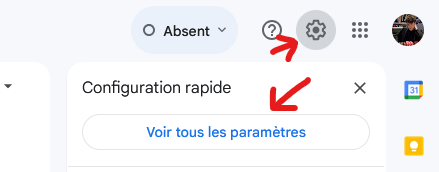
From your Gmail interface, click the settings gear, then “See all settings”.
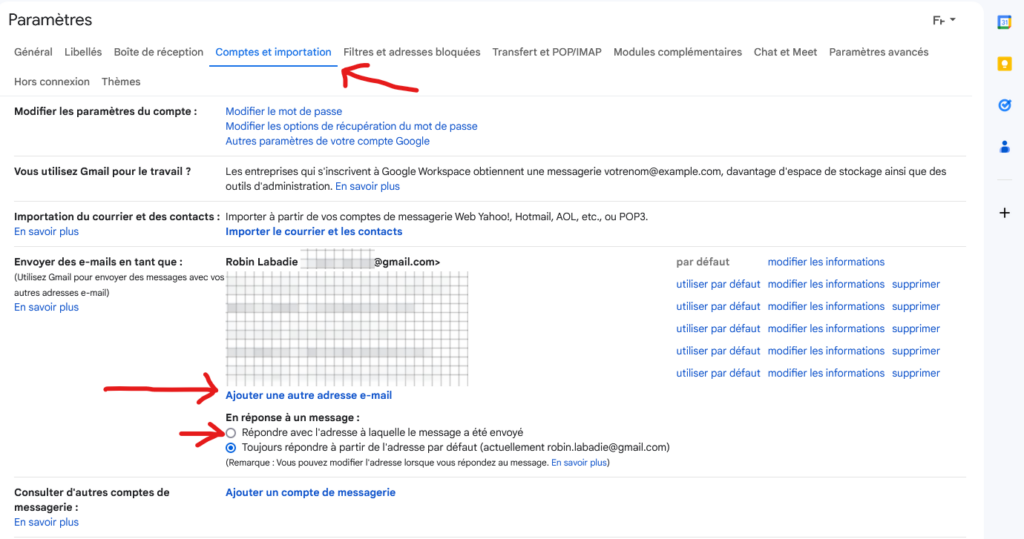
Go to the “Accounts and Import” tab. Optionally, select “Reply from the same address the message was sent to”. Then click “Add another email address”.
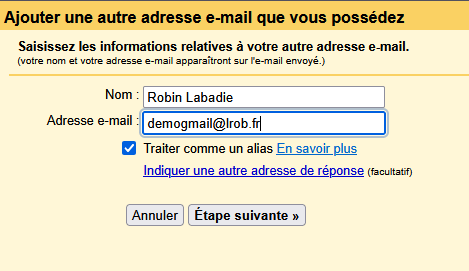
In the pop-up that opens, choose your display name (visible to your recipients) and enter your custom e-mail address.
Be careful, Gmail’s default setting does not work. The server is fine: “mail.yourdomain.tld” can be secured with a Wildcard certificate on LRob hosting, but port 587 with TLS (which is actually STARTTLS) does not work in Gmail.
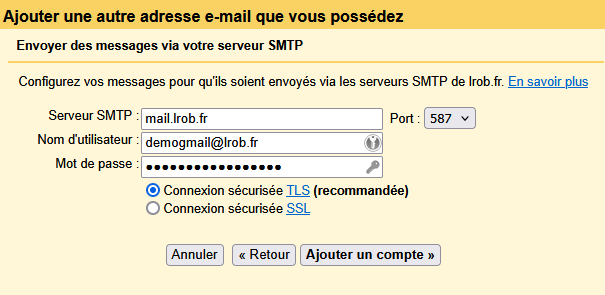
Warning, invalid setting.
We recommend using port 465 with “SSL” (which is actually TLS).
Once this setting is made, click “Add Account”.
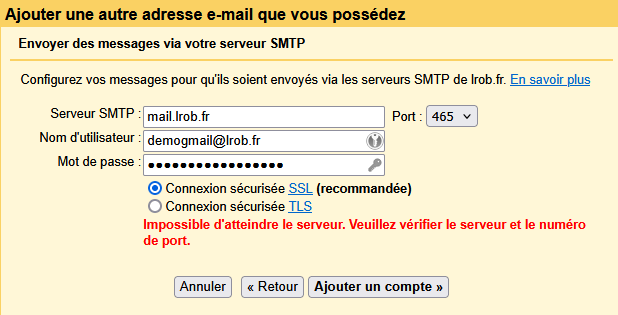
Correct setting
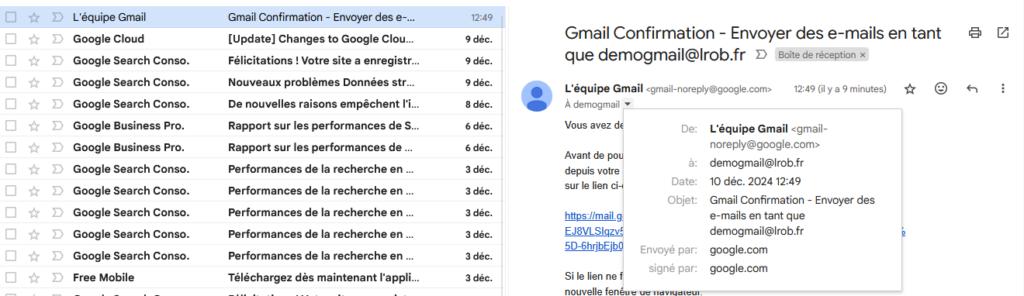
You will then receive a confirmation e-mail at the source address.
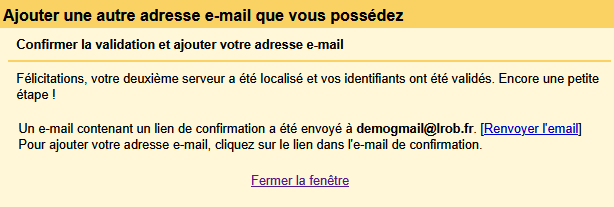
If you are not already reading the mail of your mailbox, go to your webmail. To do so, go manually to the site: webmail.yourdomain.tld (replace it with your own domain name, of course, what is to the right of the @ in your mailbox address).
Enter your custom e-mail address and your password.
You will then see the e-mail from Gmail and can click the link to finish the setup.
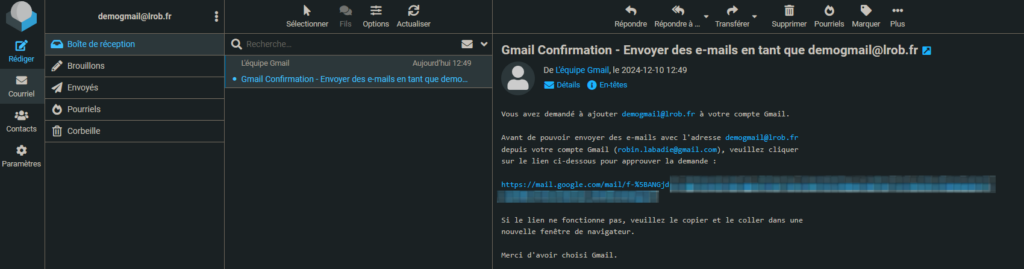
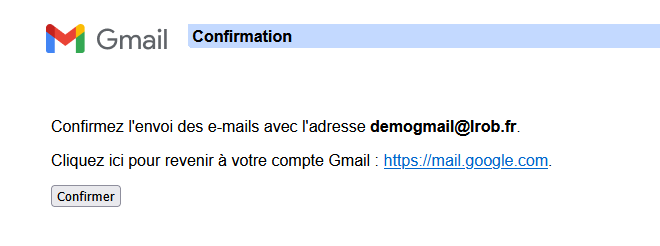
A message confirms that the setup is complete:
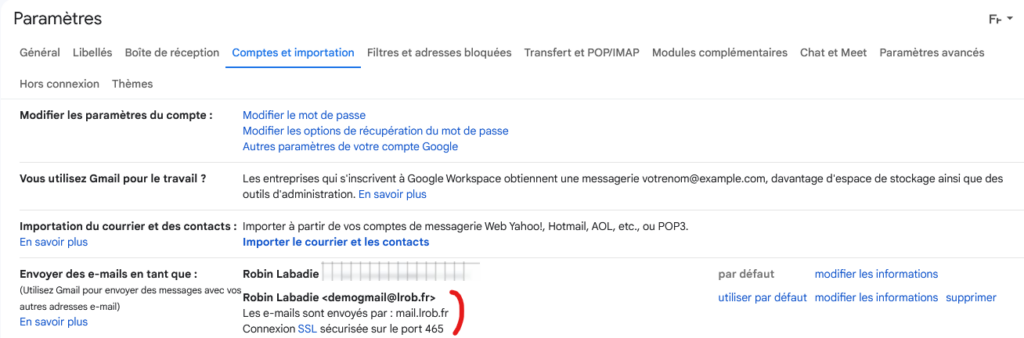
You will then see that your mailbox is available in Gmail:
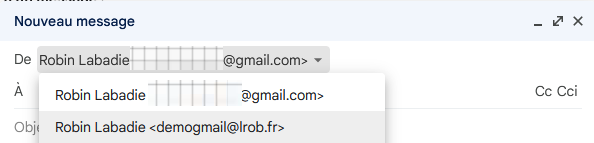
When composing a new e-mail, you can click your Gmail address to display a drop-down menu to choose the sender, including the e-mail address you added.
Receive e-mail from a custom address in Gmail
Of course, we recommend connecting directly to your mailbox over IMAP. But if you really want to use Gmail, it can also fetch the e-mail of your custom mailbox over POP.
Note that Gmail fetches e-mail at a fixed rate that cannot be adjusted. A delay of 15 to 30 minutes in receiving messages may therefore occur.
In Gmail’s settings, go to the “Accounts and Import” tab. Under “Check mail from other accounts”, click “Add a mail account”.

Enter your e-mail address and click “Next”.
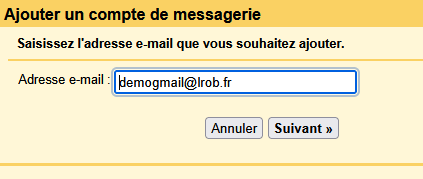
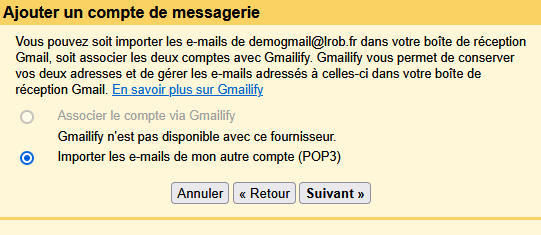
Choose “Import emails from my other account (POP3)”.
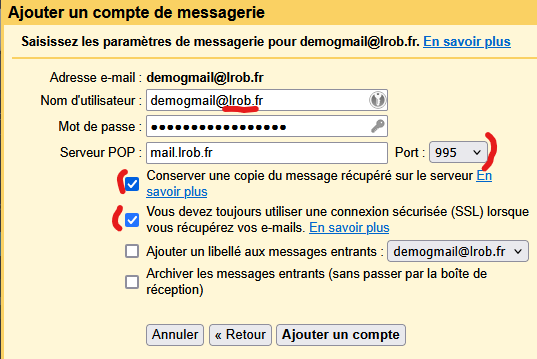
Make sure your user name is your full e-mail address.
Be sure to enter port 995 with an SSL connection. Optionally, choose whether you want to keep the original e-mail on the source server (“Leave a copy of retrieved message on the server”).
Your e-mail address is then added and checked automatically:

After a few moments it will be loaded:

You can then read the e-mail you have received.